|
Wouldn't you just love to have a personal concierge for your guest when they stay at your home? Have you ever had someone house sit and were afraid you may not have left them enough instructions? Maybe your children need a bit more guidance when doing their chores, or the babysitter would like a refresher on how something works in the house, or maybe a cleaning crew that wants to do cleaning exactly as you would like it. Or you may be one who works with Air BnB, have a timeshare, or a guest house.. if so then this ones for you!
Create your own "QR Concierge"! One of the first things I think of when I have guests is that I want them to feel comfortable and feel like they are at home and so they don't feel uncomfortable having to ask for things. I find that when I go stay with people for more than a few days at a time, I often feel uncomfortable asking how to do things. So, I began the thought process of having a "QR Concierge" in our home for "How To's" and it exploded with seemingly endless possibilities. From there I had often had thoughts of creating a "QR Concierge" Binder, or a "QR Concierge Board" in our laundry room and placing small QR codes on or near items that one might need assistance with. So I began making it happen! Creating our QR Concierge! Below are some of the QR Concierge categories: Recreation:
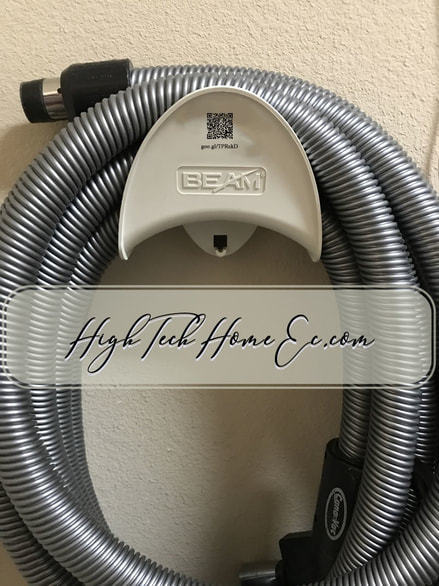
How am I bringing it to life? Well, I create a video tutorial using my phone.. (I know.. real high tech huh?) Or, if there is already a video out there on YouTube.... I grab the URL from that video... (Why reinvent the wheel.. right??!).. If I created the video I upload it into a Google Folder located in my Google Drive. Then "share" that folder with "anyone with the link". Sometimes, instead of sharing a "folder" I will create a "Google Slide" inside that folder and share the "Google Slide" with "anyone with the link" and on that Google Slide I will embed video tutorials on the slide as well as other help items. Example: The one slide might contain a link for:
After we share the Google folder or the Google slide, we take the URL from that shared folder or slide and create a QR Code for it (I use QRStuff.com), I also create a shortened URL (I use Goo.GL)...(just in case our guests don't have a QR Code reader it's easier for them to type it in their browser on their phone. (But I always suggest one "I-nigma") The reason I link to the folder or slide instead of the video file is that this allows me to change my video at any time without having to change my QR Code that is printed in several locations in the house. What do I use to print out my QR Codes? I have a "MyAvery" account. I like to print my QR Codes on Avery's transparent labels #8660. If it is a small item that I am placing it on such as the A/C unit I have used the small Avery return address labels #18695. It's less obtrusive but scanning can become difficult after trying to resize it. When creating I edit one label at a time. When you are ready to print, select "Preview & Print". (I usually just print one at a time by selecting "Print It Myself / Print Range / Print From 1-1 ) Be sure to test the QR Code with your QR Reader (i-nigma) after resizing it to make sure it still is readable prior to printing. I usually download it as a .pdf and then open the .pdf and scan it right off my systems monitor before printing it to an actual label. 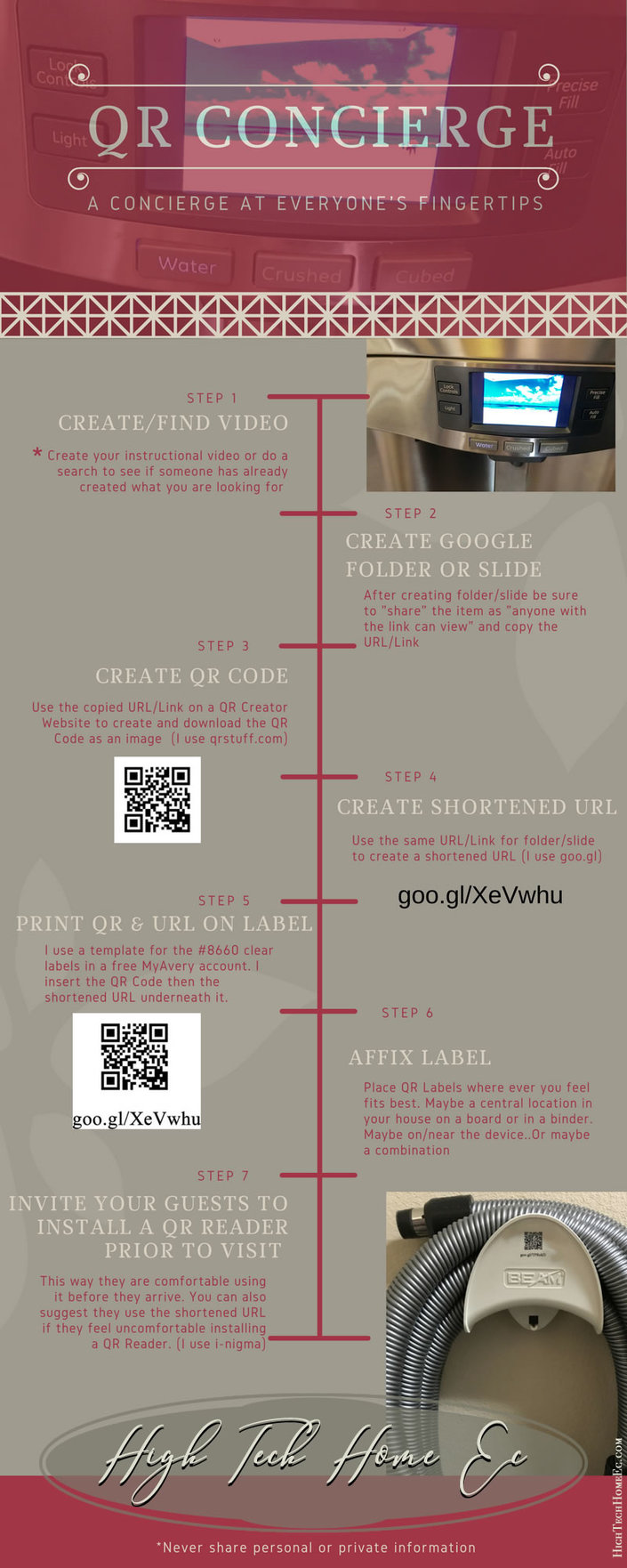
There are several other platforms you could use besides Google Drive, I just prefer using it. For example, you could also do this on YouTube if you'd like. I would create "playlists" for each category and then upload the videos for that category and make sure the video is "unlisted". I just like the security of Google Drive and being able to change the "rights" to files and folders in an instant.
I DO NOT leave access codes or location information to things in my videos for safety reasons. Those I give directly to my guest or house sitter. UPDATE 10/15/17: I also though .. what about putting the QRs for chores on index cards and allow children to "Draw" their Family Household Chores? Or maybe they "owe family service" time for a family rule infraction, have them "Draw" their consequence.. which would be in this case, giving back to the family.
0 Comments
It seems like there are more and more things to do and less time to do them in. Trying to balance work, family, sports and social time seemed to become overwhelming. Until I discovered Google Keep! It's now my saving grace to keeping things organized, coordinated, purchased, and completed.
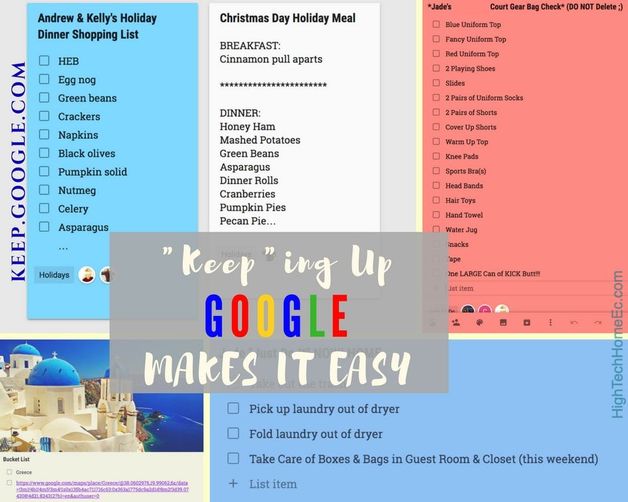
What are the benefits you ask?
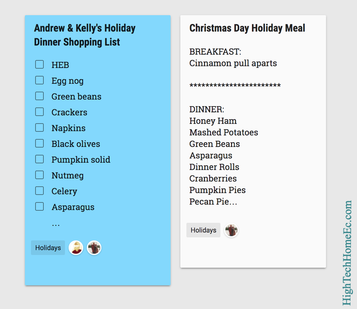
Keep allows you to streamline your workflow in so many areas of your live, freeing up time so you can spend it enjoying more of the things you love.
~Kelly Marie
|

AuthorFamily and Consumer Science Teacher turned Instructional Technology Specialist with almost 30 years of experience split between both. Wife, Mother, Educator, Technologist, Consumer, Former Bradley University Volleyball Player. Google Certified Trainer & Google Certified Educator Level I & II, Photographer, Entrepreneur. 
Fall Cut Files
From LiveBeyondTheLens.com 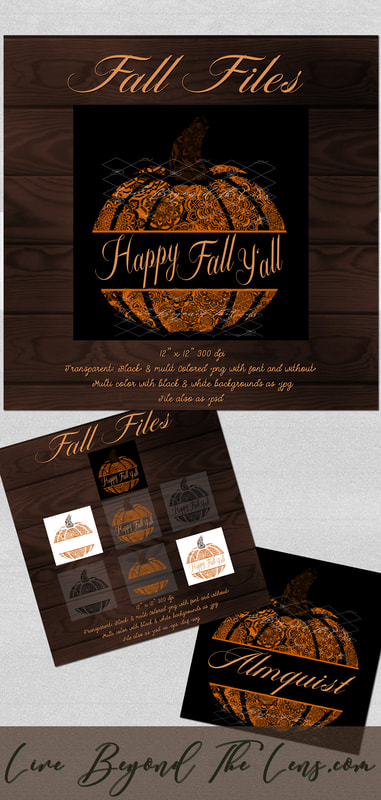
ArchivesCategories |
 RSS Feed